




Spingranny Casino App
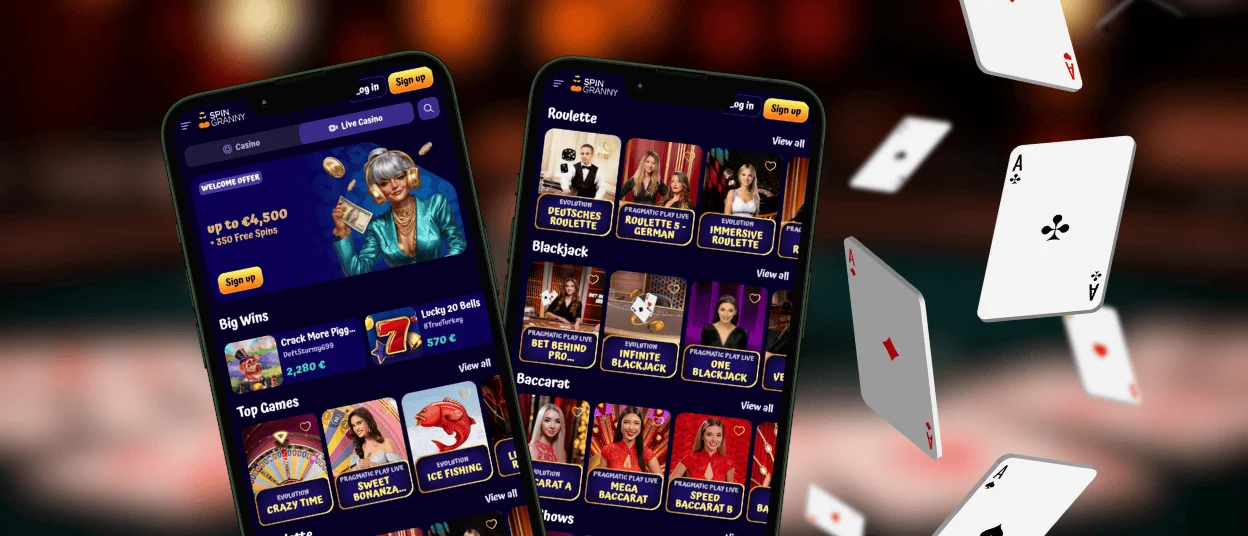
The Spingranny app is a browser-based way to use our casino on a phone or tablet with the same account as the desktop site. It keeps the lobby structure familiar, but adapts menus and controls for touch screens.
On mobile, the layout focuses on clear navigation and fast access to sections like Casino, Live Casino, promotions, and your profile. Large tiles help you scan the lobby without extra zooming. Your favourites and activity progress stay linked to the same profile, so switching between devices does not break the flow.
For quicker entry, add Spin Granny to your home screen as a shortcut icon. This opens the casino in a focused view and saves time compared to searching for the website each session.



Key Features of the Spingranny App
Spin Granny mobile keeps key actions simple when you play from a phone. It places navigation, search, and account tools where they stay easy to reach with one hand. This helps when you want to start a short session or return to a saved game without extra steps.
The mobile view also reduces common friction points. Buttons stay large enough for touch. Menus stay compact, so the screen does not feel crowded. You can also adjust how you browse the lobby with quick sorting and provider filters, which is useful when you do not want to scroll for long.
- One-tap entry after you add a shortcut icon to your home screen
- App-style full-screen view, which keeps focus on the session
- Touch-friendly controls with clear tap targets and readable spacing
- Faster browsing with A–Z sorting and provider filters
- Quick return to favourites and recently opened titles
- Help Center access from the mobile menu when you need support
- Language options available in the interface for easier navigation
This setup runs as a PWA, so it does not require a store download.
Mobile Application for iOS
Spingranny works on iPhone through Safari in a mobile layout, so you use the casino without installing an App Store application. The interface adapts for touch control and keeps navigation simple on a small screen. Large tiles and clear spacing help you browse the lobby without constant zooming, and the same account stays available when you switch between devices.
The iOS view keeps key sections easy to reach during a session. You can open games, check promotions, and manage profile tools in the same mobile structure. The design also reduces misclicks by using larger tap targets and a compact menu.
Spingranny protects sessions with encrypted HTTPS connections while you play on iOS. This helps keep logins and account actions private on mobile networks.
Set Up the iOS App
A home screen shortcut lets you open Spingranny like an app. It launches in a focused window and saves time because you do not need to search for the website each visit.
- Open the casino website in Safari.
- Tap the Share button (square with an arrow).
- Select “Add to Home Screen.”
- Confirm the name and tap “Add.”
Spingranny App for Android
On Android, Spingranny runs directly in your browser and keeps access lightweight. This format works well when you want quick entry and a clear screen on a phone. After setup, the casino opens from a home screen icon in its own window, so returning to a session takes fewer steps.
The Android setup also avoids extra installs. Spingranny APK is not required, because the browser install creates the same app-style access and keeps the web version up to date automatically.
How to install the PWA:
Chrome usually offers the install option through the menu, and some devices also show an “Install” prompt.
- Open the casino website in Chrome.
- Tap the three-dot menu in the top corner.
- Select “Add to Home screen” or “Install app.”
- Confirm the name, then tap the new icon to launch.
Recommended Security Practices
Use the install option only from the official website and ignore third-party “app files” or copied links. Keep Android and Chrome updated, because updates include security fixes. Set a screen lock, and avoid saving passwords on shared devices. If someone else can access the phone, log out after the session and remove the shortcut if needed.
Spingranny on Windows and macOS
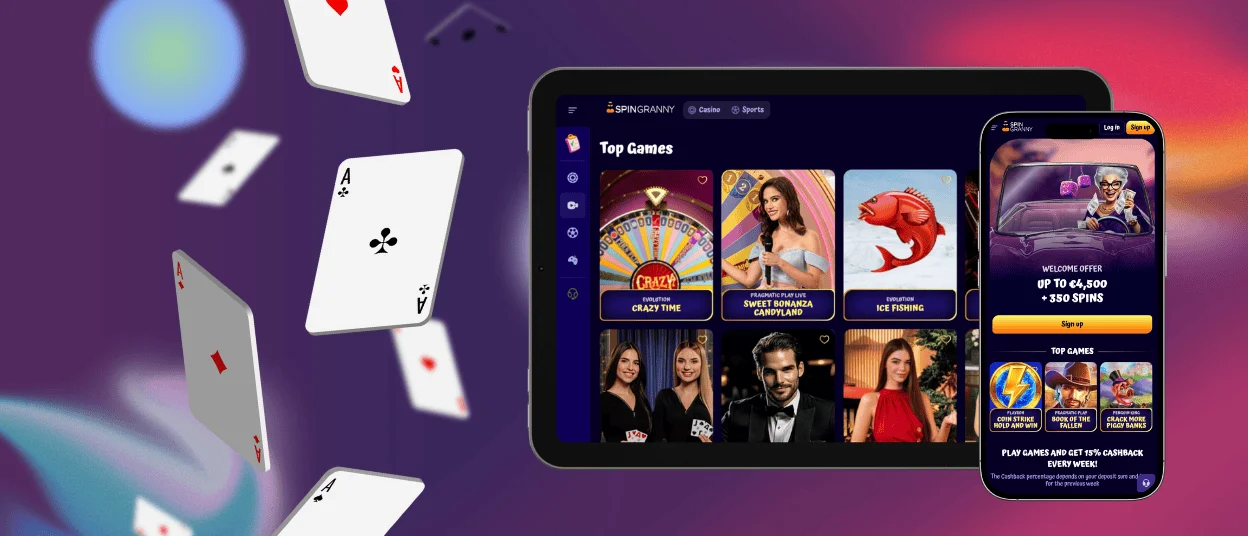
A desktop or laptop screen gives more space for the lobby and menus. It helps you browse with fewer page changes and use search, sorting, and filters with a mouse. The Spin Granny app setup on desktop also suits players who prefer opening the casino from one fixed icon.
Spingranny works on Windows and macOS through modern browsers, so you can start without installing a classic desktop program. The wider layout keeps titles, buttons, and account sections easier to read, which is useful during longer sessions. Desktop access can also feel more practical for routine account actions, because forms stay clearer and you can check files before you upload them during the verification process. If you switch between devices, the same profile stays available, so you continue with the same saved games and settings.
The PWA can also be installed on a PC and added as a shortcut on the desktop. This lets you open the casino in one click, instead of searching for the website in the browser each time.

Frequently Asked Questions (FAQs)
Do I need to create a new account to use the mobile version?
No extra registration is required for the mobile version. The mobile format uses the same Spingranny account as the desktop site, so you sign in with the email and password you already created. Your profile data stays linked to one account, which means your balance, favourites, and activity progress remain connected when you move between phone, tablet, and desktop.
Will my favourites stay saved when I switch between phone and desktop?
Favourites stay linked to your account, not to a specific device. If you add a game to favourites on mobile, it should appear the same way after you sign in on desktop.
If a favourite does not show, refresh the lobby or sign out and back in. This usually updates the list.
Can I stay logged in on more than one device at the same time?
Spin Granny lets you use the same account across different devices, so you can sign in on mobile and desktop with the same details. For account safety, the system can limit or reset a session when it detects unusual activity or when two logins happen at the same time. If this happens, the site can ask you to sign in again, which protects the account from being used by someone else.
If you share a device, log out after play and avoid saving passwords. This reduces the risk of unwanted access and keeps your session private.
Can I use Face ID or fingerprint to log in faster?
Biometric login works through your device and browser, not through a separate casino setting. If you save your Spingranny login in the secure password manager of Safari or Chrome, the browser can ask for Face ID, Touch ID, or fingerprint confirmation before it fills your details. This speeds up access while keeping control in your phone’s security tools. If you prefer not to use biometrics, you can always sign in manually with email and password.
Is the connection secure when I play on mobile data?
Spin Granny protects sessions with encrypted HTTPS connections, which helps keep logins and account actions private while data travels between your device and the site. This protection works on both Wi-Fi and mobile data, so your traffic does not travel as plain text.
For best safety on mobile networks, avoid shared devices, use a screen lock, and log out after your session. If you use public Wi-Fi, it is safer to switch to mobile data or a trusted network.


